
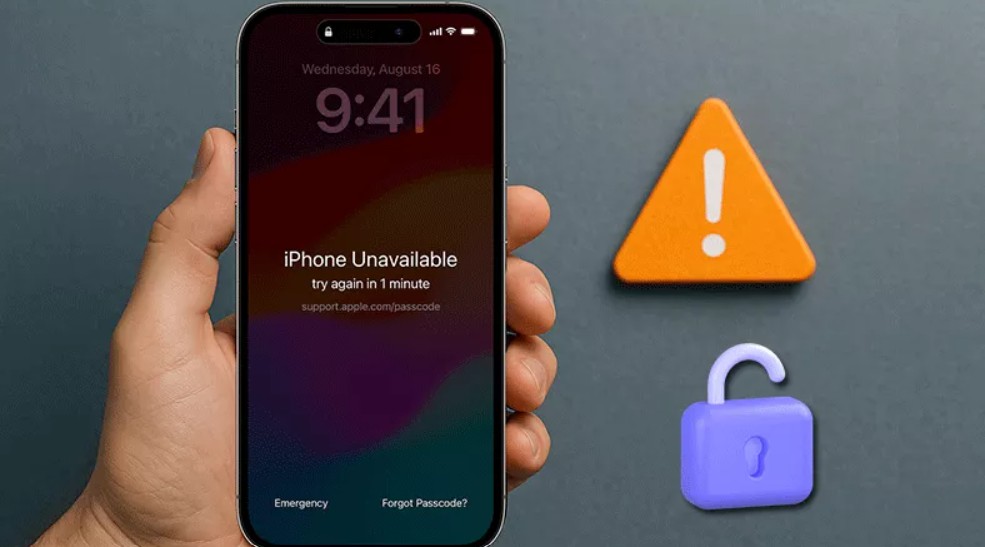
Seeing “iPhone Unavailable” usually means too many incorrect passcode attempts have triggered Apple’s Security Lockout. If you still remember the passcode, waiting for the timer to expire may be enough. If you have forgotten it, however, getting back into the iPhone normally means resetting or erasing the device.
Apple already provides several recovery routes, including on-device reset options on supported iOS versions and Recovery Mode with a computer. They are worth trying first, but they can erase local data, and you may still need the Apple Account linked to the device during activation. If you would rather use a guided desktop tool, FoneTool Unlocker offers an alternative for common iPhone lock and password problems.
Unlock an Unavailable iPhone with FoneTool Unlocker
FoneTool Unlocker is a Windows-based iOS utility that collects several iPhone and iPad unlocking and password tools in one interface. Rather than presenting a different workflow for every issue, it guides users through the required steps from the desktop, which can be convenient when the usual recovery process feels unclear or the device is already locked out.
As a dedicated iPhone unlock software, it covers screen locks, account-related locks, and password management in one place.
Its toolkit covers the main situations users are likely to encounter: removing an iOS screen passcode, removing an Apple ID in supported cases, unlocking Screen Time restrictions, removing iTunes backup encryption, removing iCloud Activation Lock on supported devices, and Password Management for viewing, managing, or exporting saved iOS passwords where supported. Not every function works in every situation, so it is important to check the device model, iOS version, and feature requirements before starting.
See also: 5 Best Smartwatches With call function & AMOLED display
Detailed Steps to Unlock an Unavailable iPhone
For other recovery options, see how to unlock iPhone without password. If your main problem is a forgotten lock-screen code and you decide to use FoneTool Unlocker, the process is fairly straightforward:
Step 1. Download and Install FoneTool Unlocker
Download FoneTool Unlocker from the official website and install it on a Windows PC. Open the program once the installation is complete.
Step 2. Connect the Locked iPhone
Connect the locked iPhone to the computer with a reliable USB cable. If the program does not recognize the device right away, follow the on-screen prompts rather than repeatedly reconnecting it.
Step 3. Choose Remove iOS Screen Passcode
From the main screen, choose “Remove iOS Screen Passcode” and start the removal process. Make sure you have selected the correct function, since the program also includes tools for other types of locks and passwords.
Step 4. Put the iPhone into Recovery Mode
If prompted, put the iPhone into Recovery Mode. The button combination varies between Face ID models, the iPhone 7 series, and older devices with a Home button, so follow the instructions for your specific model.
Step 5. Download the Firmware and Start Unlocking
Check the detected device information, then download the firmware package required for the iPhone. Once it is ready, follow the prompts to remove the screen passcode. The process may take a little time, so keep the iPhone connected until it finishes. You can then set up the device again and restore a compatible backup if you have one.
Important Things to Know Before You Start
Removing a forgotten screen passcode generally erases the data stored locally on the iPhone. If you have a recent backup, you can restore it after the device has been reset. It is also worth remembering that screen-passcode removal and Activation Lock removal are separate functions. Resetting the lock screen does not automatically remove Activation Lock, so check the requirements for the relevant feature before proceeding. Before you begin, take a moment to confirm that the computer has a stable internet connection and enough free storage for the firmware package. This small check can help avoid unnecessary interruptions during the reset process.
The Bottom Line
An “iPhone Unavailable” message does not necessarily mean the device is unusable. Apple’s own recovery options are the natural place to start, while FoneTool Unlocker provides a guided Windows-based alternative for users who want several unlocking and password-management functions in one program. Whichever route you choose, check compatibility first, understand whether the process will erase local data, and keep any available backup and Apple Account information at hand.